AirDroid Parental Control is a popular pick for keeping an eye on a child's Android phone, but it isn't the right fit for everyone. Some parents find it more monitoring-heavy than they want, others bump into the paywall quickly, and many simply want something lighter to set up.
If you're shopping for an AirDroid Parental Control alternative, here are seven solid options for Android — what each does well, where it falls short, and who it's best for. We've kept the comparisons honest so you can pick what actually fits your family.
What to look for in an alternative
Before the list, a quick checklist. A good parental control app should let you:
- Block or limit distracting apps without locking down the whole phone
- Filter unsafe websites and keep search safe
- See your child's location when you need it
- Set it up quickly — ideally without a second device
- Respect privacy — your family's data shouldn't be the product
Different apps lean in different directions. Some are monitoring-first (reading messages, logging everything); others focus on healthy limits and safety. Decide which philosophy you want before you choose.
1. Kubo — best free, lightweight option
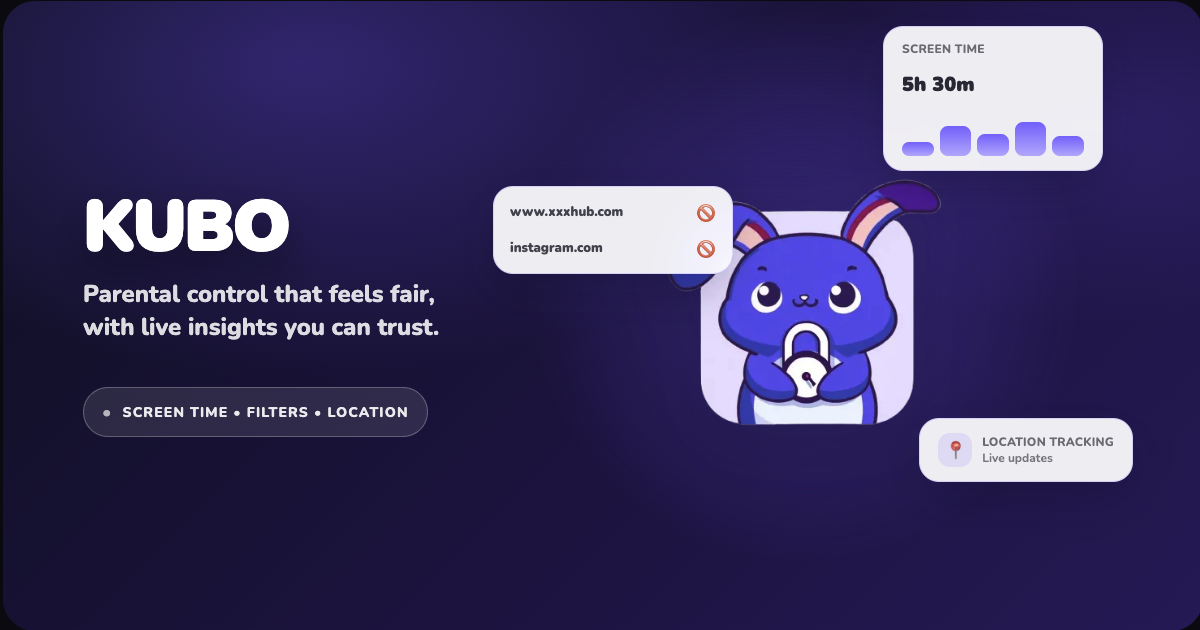
Kubo is a free Android app built around healthy habits rather than heavy surveillance. Instead of logging every message, it focuses on the controls most parents actually use day to day.
- Block distracting apps instantly and allow-list essentials like calls, maps, and school apps
- Safe browsing that blocks adult and risky content with safe search on by default
- Location sharing — see your child's latest shared location and open it in Maps for quick pickups
- Two setup modes: Local Mode on a single device, or pair a parent and child phone with a QR code
Best for: parents who want a free, simple, privacy-respecting app that builds good habits. Limitation: Android only, and it's focused on healthy limits rather than deep message monitoring.
2. Google Family Link — best fully free baseline
Google's own Family Link is free and tightly integrated with Android and Google accounts. It covers screen-time limits, app approvals, content filtering, and basic location.
Best for: families already in the Google ecosystem who want a no-cost baseline. Limitation: controls are fairly broad, and tech-savvy teens can sometimes find ways around them.
3. Qustodio — best for detailed reports
Qustodio is one of the most comprehensive paid options, with web filtering across many categories, screen-time scheduling, location history, and detailed activity reports. It also offers a limited free tier.
Best for: parents who want robust, granular control and detailed dashboards. Limitation: the free plan is limited to one device, and full features require a subscription.
4. Kaspersky Safe Kids — best free feature set
Kaspersky Safe Kids offers a genuinely useful free tier with content filtering and screen-time tools, plus premium upgrades for location and more advanced controls.
Best for: parents who want strong filtering without paying upfront. Limitation: the most useful safety extras sit behind the premium plan.
5. Kiddoware — best for tablets and older devices
Kiddoware provides app management, web filtering, activity logging, and screen-time control across a range of Android devices, including older phones and tablets.
Best for: households with mixed or older Android hardware. Limitation: the interface feels more utilitarian than modern apps.
6. OurPact — best for simple schedules
OurPact keeps things focused on app blocking and screen-time schedules, with a straightforward free version and paid upgrades.
Best for: parents who mainly want to schedule "no phone" windows. Limitation: lighter on web filtering and location features.
7. Microsoft Family Safety — best for cross-device families
If your household mixes Android phones with Windows PCs and Xbox, Microsoft Family Safety ties screen time and content filtering together across all of them for free.
Best for: Windows-heavy families. Limitation: the experience is best inside the Microsoft ecosystem.
Quick comparison
| App | Free tier | Strength | Best for |
|---|---|---|---|
| Kubo | Yes (full) | Simple habits + safety | Free, lightweight control |
| Google Family Link | Yes | Native Android baseline | Google households |
| Qustodio | Limited | Detailed reports | Power users |
| Kaspersky Safe Kids | Yes | Strong filtering | Budget filtering |
| Kiddoware | Limited | Wide device support | Older devices/tablets |
| OurPact | Yes | Simple schedules | Time scheduling |
| Microsoft Family Safety | Yes | Cross-device | Windows families |
Pricing and free-tier limits change often — check each provider's site for the latest before subscribing.
How to choose
- Want it free and simple? Start with Kubo or Google Family Link.
- Want deep reports and don't mind paying? Look at Qustodio.
- Mixing Android with Windows/Xbox? Microsoft Family Safety ties it together.
Whatever you choose, the goal is the same: less screen-time conflict and a safer phone. For help deciding which apps to limit first, read our guide on how to block apps on your child's Android phone, and for age-based limits see how much screen time is healthy by age.
Ready to try the free, lightweight option? Get Kubo for Android and set up your first limits in under five minutes.