If your child can't seem to put the phone down, you're not alone. Endless scrolling, autoplay videos, and games designed to keep kids hooked make it genuinely hard to step away. The good news: you don't have to police every tap. You can block specific apps on your child's Android phone so the distractions simply aren't available during homework, meals, or bedtime.
This guide walks through every option — from Android's built-in tools to a dedicated parental control app — so you can pick what fits your family.
Why block apps instead of taking the phone away?
Taking the phone away works for an afternoon, but it doesn't teach habits, and it often triggers a fight. Blocking specific apps is more sustainable because:
- It's targeted. You can block the apps that cause problems (social media, games) while keeping the ones that matter (calls, maps, school apps).
- It's consistent. Rules apply automatically, so you're not the "bad guy" every single day.
- It builds trust. Kids understand which apps are limited and why, instead of feeling everything was confiscated.
Not all screen time is equal. The goal isn't zero screens — it's encouraging the good stuff and limiting the endless scrolling.
Option 1: Android's built-in tools (free, basic)
Android has a few free controls already on the phone. They're a reasonable starting point if you want something quick.
Digital Wellbeing app timers
- On the child's phone, open Settings → Digital Wellbeing & parental controls.
- Tap the chart, then find the app you want to limit.
- Tap the hourglass/timer icon and set a daily limit. When the time runs out, the app is paused until midnight.
The catch: app timers reset every day, a tech-savvy kid can often change them, and there's no remote control from your own phone.
Google Family Link
Family Link lets you set screen-time limits and approve app downloads from your own device. It's a solid free option, but it's broad — it's built around overall screen time and Play Store approvals rather than fine-grained, instant app blocking.
Option 2: A dedicated parental control app (more control)
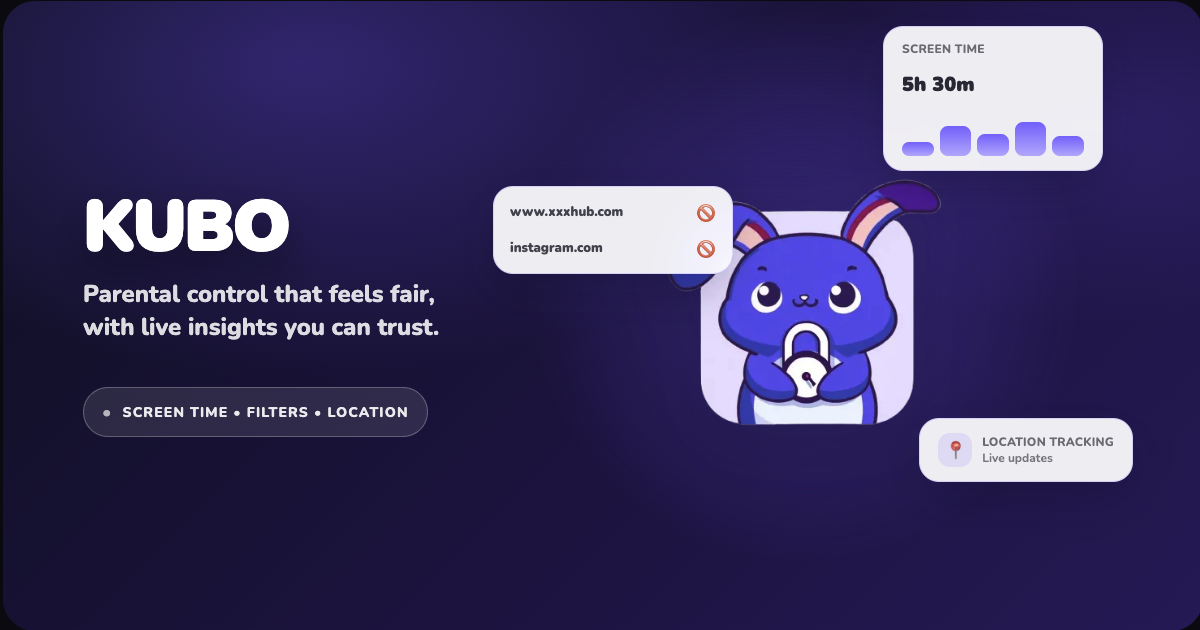
If the built-in tools feel too easy to bypass or too coarse, a dedicated app gives you reliable, granular control. This is where Kubo comes in — it's a free Android app built specifically for blocking distractions and keeping kids safe online.
With Kubo you can:
- Block distracting apps instantly — toggle off social media or games in a tap.
- Allow-list the essentials — keep calls, maps, and school apps always available.
- Use age-friendly categories — group apps so you're not managing them one by one.
- Add safe browsing — block adult and risky content with safe search on by default.
How app blocking works in Kubo
You can run Kubo in two ways:
- Local Mode — set everything up directly on the child's phone, no second device needed. Great for a single shared or hand-me-down phone.
- Paired Mode — scan a QR code to link the child's phone to a parent phone, then manage limits remotely whenever you want.
Either way, blocking an app takes seconds, and the change applies on the child's device right away.
Step-by-step: block an app with Kubo
- Install Kubo from the Google Play Store on the child's phone.
- Choose the Child profile during setup.
- Pick Local Mode to manage on-device, or generate a QR code to pair with a parent phone.
- Open the app list and toggle off the apps you want to block.
- Allow-list essentials like phone, messages, maps, and school apps so they always work.
- Swipe the launcher slider to go live — the blocked apps are now unavailable.
That's it. You can adjust the list anytime as routines change.
Which apps should you block first?
Every family is different, but parents most often start with:
- Short-video & social apps (the biggest time sinks)
- Open-ended games with no natural stopping point
- Browsers, unless paired with safe-browsing filters
Keep communication, navigation, and learning apps available. For help deciding how much screen time is appropriate by age, see our guide on screen time guidelines for kids.
A few tips that make blocking actually work
- Explain the why. Kids follow rules they understand. Frame it as protecting focus and sleep, not punishment.
- Block during specific moments, like homework and bedtime, rather than all day.
- Keep one or two "good" apps open so the phone still feels useful.
- Revisit monthly. As your child grows, loosen or tighten the list together.
Frequently asked questions
Can my child uninstall the blocking app? A dedicated launcher-based app like Kubo is much harder to remove or bypass than a simple timer setting.
Do I need two phones? No. Kubo's Local Mode works on a single device. Pairing a parent phone is optional if you want remote control.
Is it free? Yes — Kubo is free to download on the Google Play Store.
Ready to cut the distractions?
Blocking apps doesn't have to mean constant battles. With the right setup, the distractions just aren't there when they shouldn't be — and your child keeps the apps that genuinely help.
Get Kubo free for Android and block the first distracting app in under five minutes.